Loading...
Loading...
Gauge Chrome extension
The side panel captures the meeting-tab audio and the live captions while you record, then ships a transcribed call to your dashboard when you press Send. Nothing captures before you press Record.
Gauge Recorder
The key stays in session memory only.
API key
No key saved for this session.
Key saved · session memory only.
Status
Open a Meet / Teams / Zoom tab, then press Record.
Recording tab audio (32kbps Opus) + captions. Press Stop when done.
Stopped. Uploading audio + finalizing captions…
Done - summary: /app/calls/8f3k
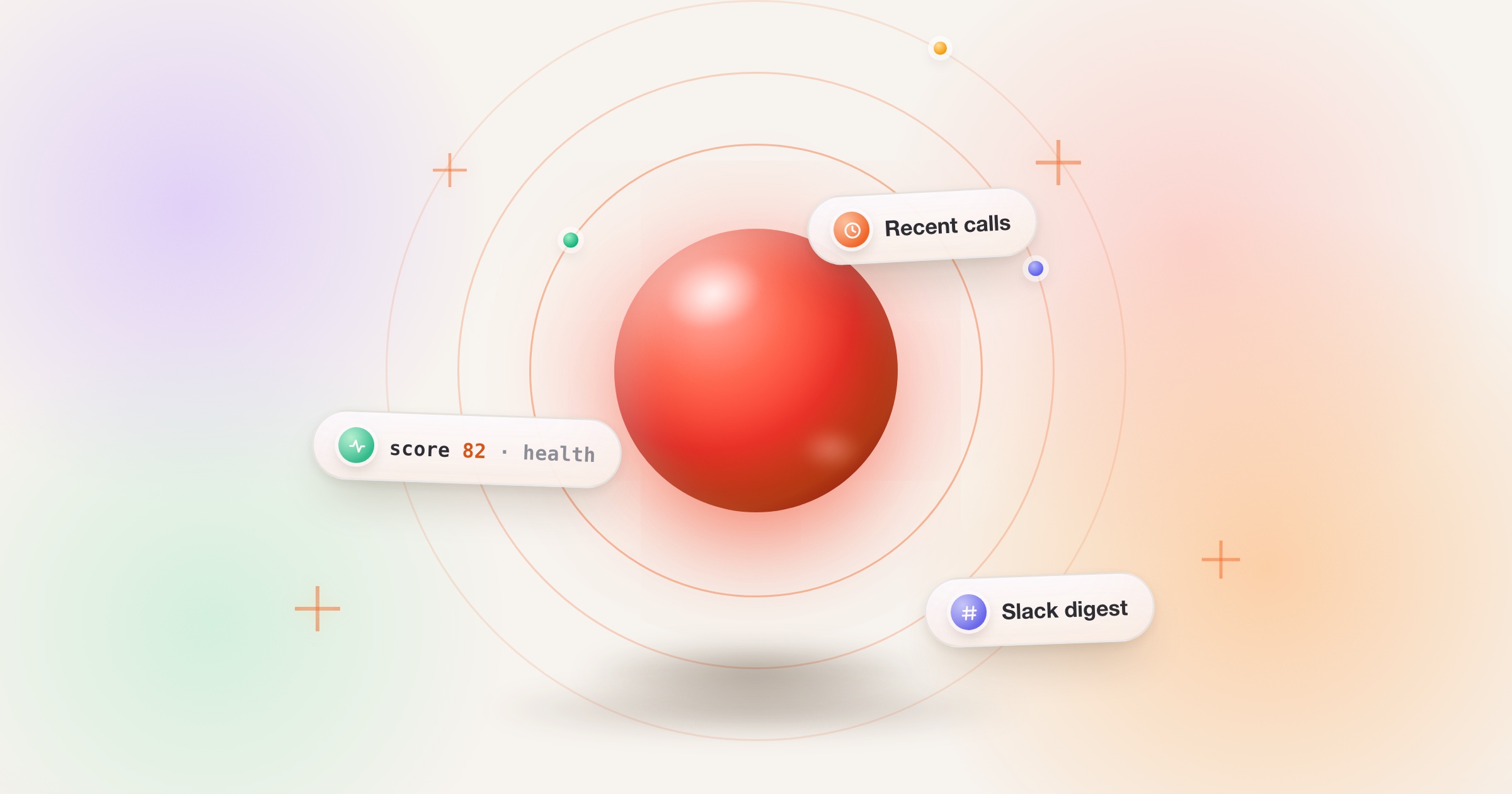
Recent calls
Acme × Gauge — Discovery
score 82 · extension
Install
Load the extension unpacked, connect it with an API key, and press Save. The key lives in session memory only — it never touches disk.
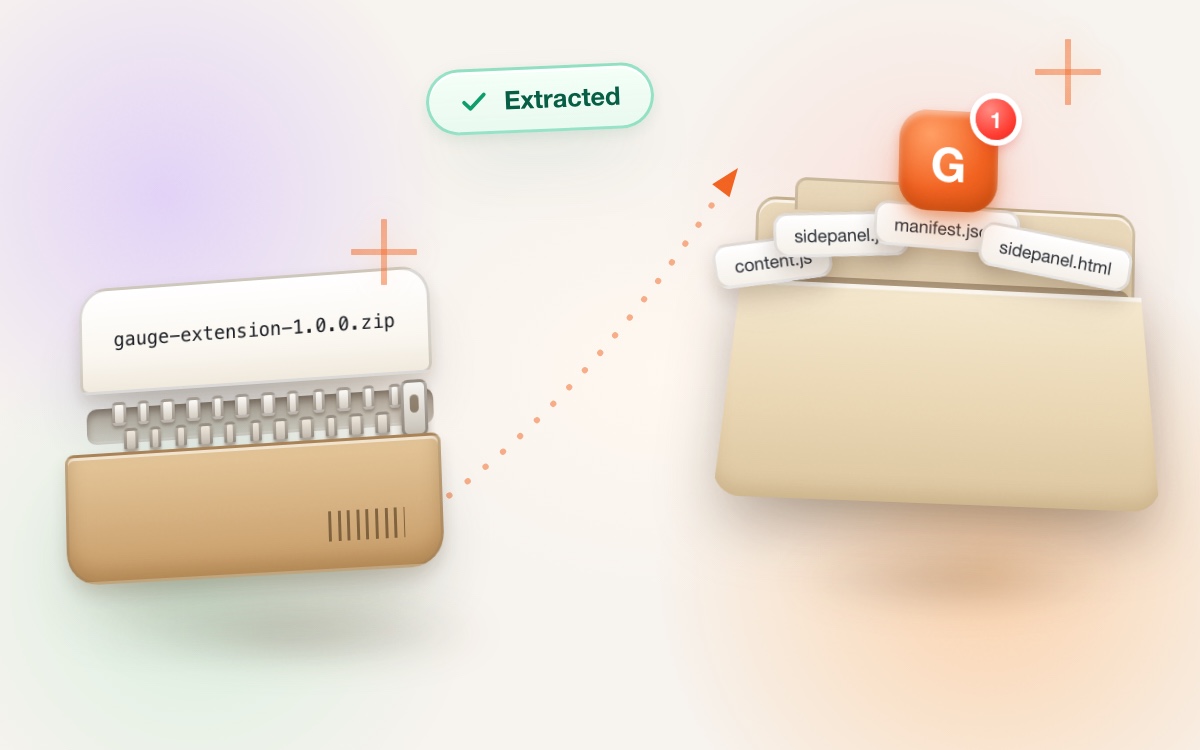
STEP 1
Download the official extension archive (.zip) and extract it to a folder on your computer.
Download v1.0.0 (.zip)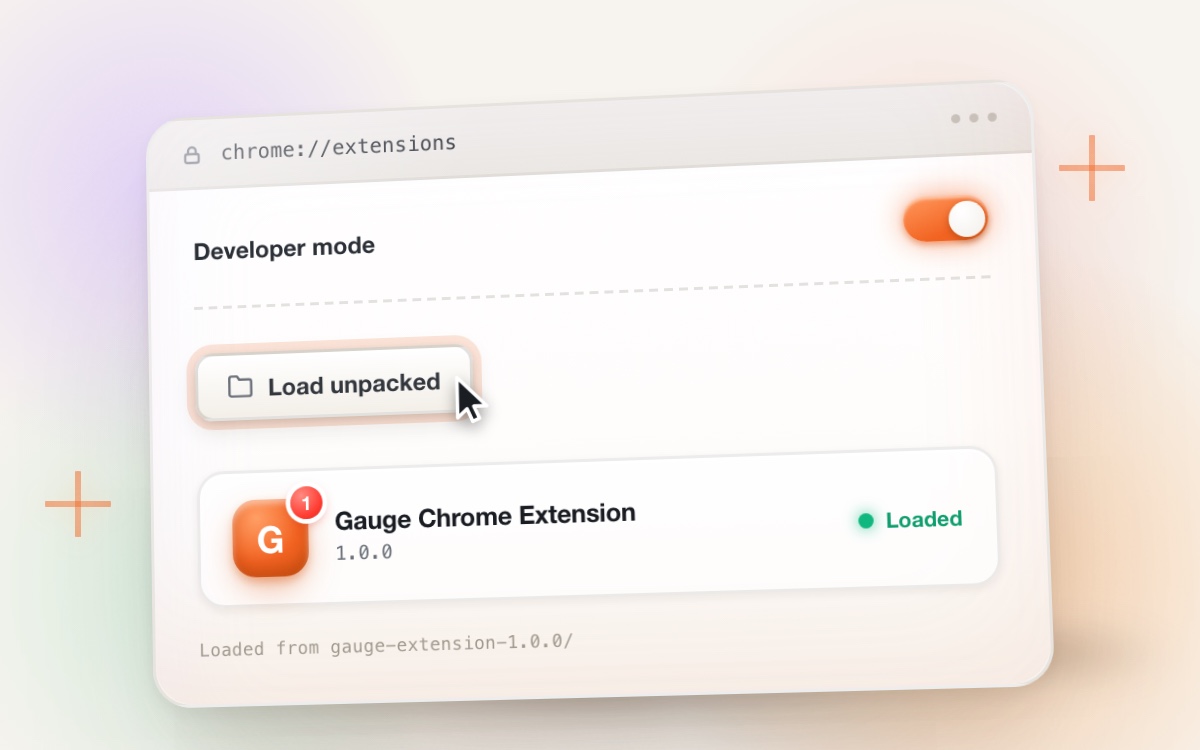
STEP 2
Open chrome://extensions in your browser, turn ON Developer mode (top right toggle), click Load unpacked, and select the extracted folder.
Works on Google Chrome, Brave, Arc, Edge, and all Chromium browsers.
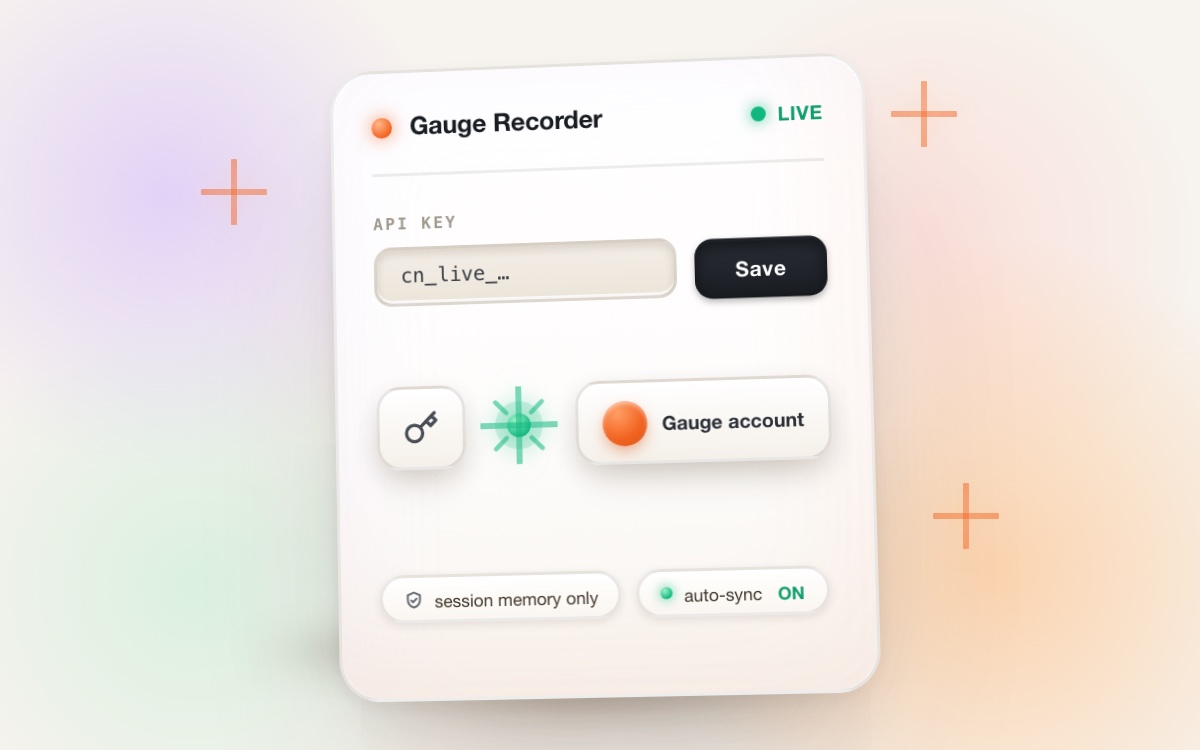
STEP 3
Open the Gauge side panel in your browser, click Connect Gauge Account for zero-friction auto-sync (or paste an API key from Settings), join your meeting, and click Record.
Check connection statusDemo script
Six steps, using the exact labels from the side panel: Record, Stop, Send, and the Done summary at /app/calls/{id}.
Join any Meet, Teams, or Zoom call and switch captions on. The panel status reads “Open a Meet / Teams / Zoom tab, then press Record.” With captions off there is nothing for the panel to read.
Paste a cn_live_… or cn_test_… key into the API key field and press Save. The key is required for upload and is kept in session memory only.
Press Record. The dot turns red and the panel reports “Recording tab audio (32kbps Opus) + captions. Press Stop when done.” Tab audio is captured only while recording.
Press Stop — the panel shows “Stopped. Uploading audio + finalizing captions…” — then press Send to finalize the captions for the meeting.
When the upload lands, the panel reports “Done - summary:” with a link to /app/calls/{id}. The same call appears under Recent calls, loaded via GET /api/v1/calls, with its health score in the row meta.
Open the call page to forward the summary. The Slack digest carries the same summary plus the health score, so the team sees the outcome without opening the dashboard.
Permissions
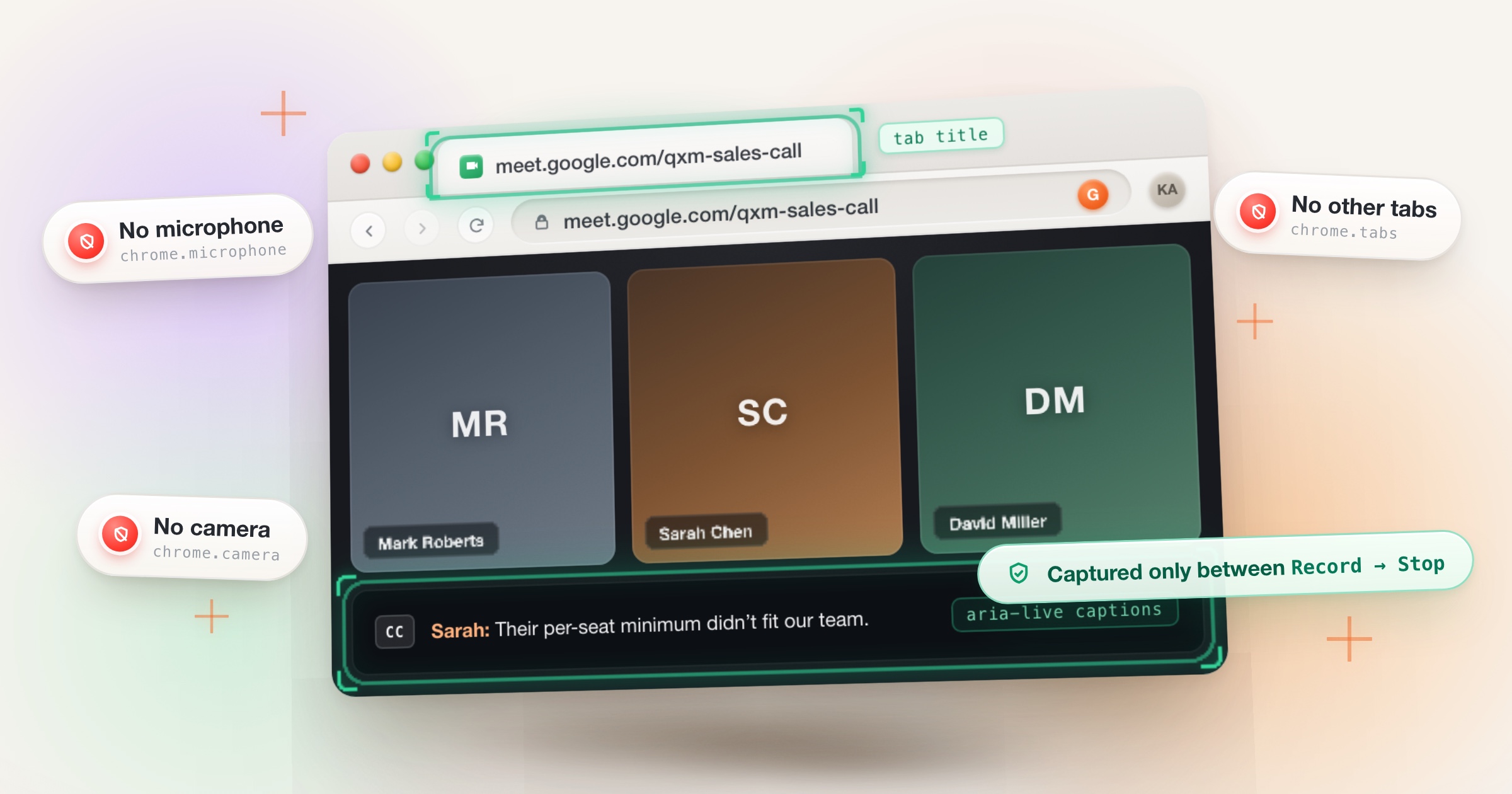
The scraper reads only live-caption regions and the tab title on meeting pages. Capture starts on your Record click and the stream is released on Stop.
| Captures | Never captures |
|---|---|
| Live caption text from aria-live regions on the meeting tab (Meet, Teams, Zoom) | Anything before you press Record — capture never auto-starts |
| Meeting-tab audio at 32kbps Opus, only between Record and Stop | Microphone input directly — no microphone permission is requested |
| Meeting title from the tab title, used as the call name | Camera, video, or screen content |
| Caption buffer and upload state in local storage, so a closed tab never loses captions | Other tabs or browsing history |
| Bearer API key in session memory only — never written to disk | Google account, contacts, or email |
Full disclosure in our privacy policy.
Troubleshooting
Five fixes for the five failures the panel actually reports.
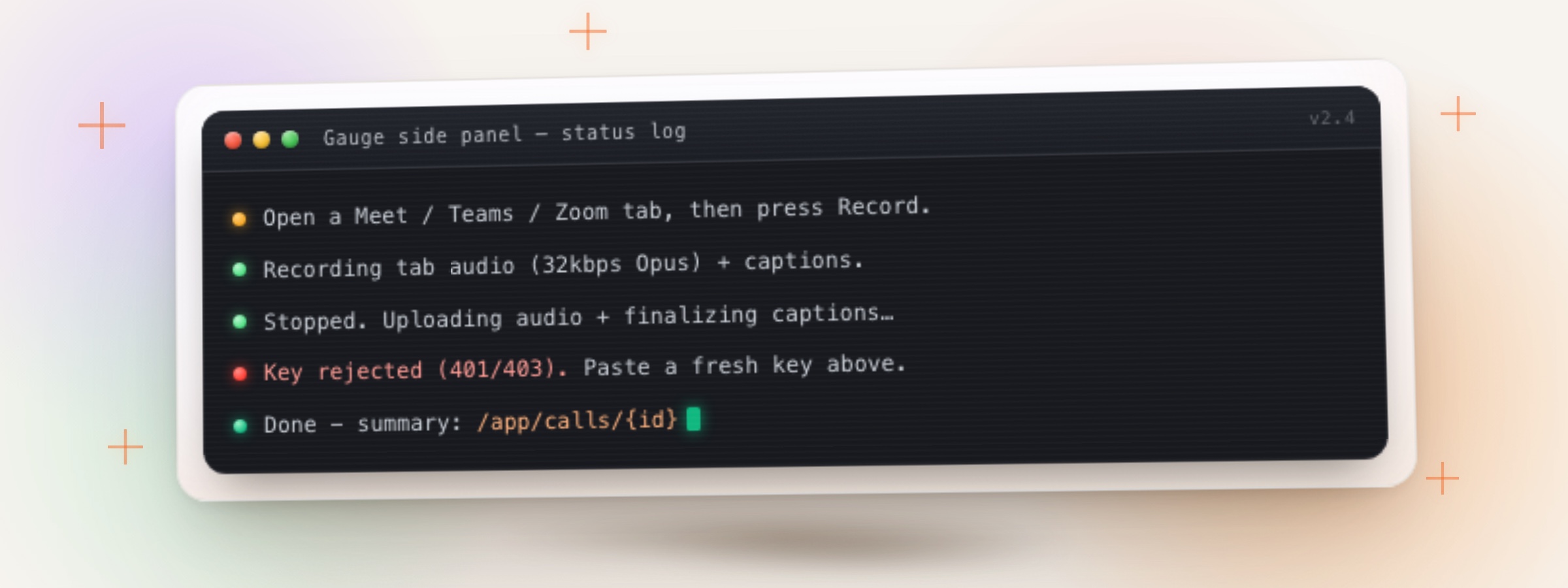
Turn captions (CC) on in the meeting. The panel reads only aria-live caption regions and the tab title, so with captions off there is nothing to scrape — the status stays on “Open a Meet / Teams / Zoom tab, then press Record.”
The file is over your plan's server-side cap: Free 30MB, Pro 200MB, Business 500MB. Record a shorter segment or upgrade, then press Send again.
The panel shows “Key rejected (401/403). Paste a fresh key above.” Mint a new key via POST /api/v1/keys/exchange or from Settings → API Keys, paste it, and press Save.
Use the extension when you attend the call in your browser. For meetings you cannot join — or calls with no captions — dispatch a meeting bot via POST /api/v1/bots instead. Same dashboard, same call pages.
Manual fallback: press Stop, download the captured audio, and upload it by hand at /app/record. Your captions are still saved locally by the extension.
One more thing
Same Gauge account. Recent calls, health scores, and the Slack digest work the moment your key is saved.